How It Works
Ctrl+Shift+TTranslate
Say it in another language.
Translation that keeps the meaning, tone, and structure.
How to use it.
01
Select the text
Something you're reading, or a reply you're writing.
02
Press the shortcut
Ctrl+Shift+T, or open the toolbar and press T.
03
Pick a language
Paragraphs, lists, and line breaks stay in place. Ask a follow-up to adjust it.
Make it yours.
Translate panel
Opens when you run Translate.
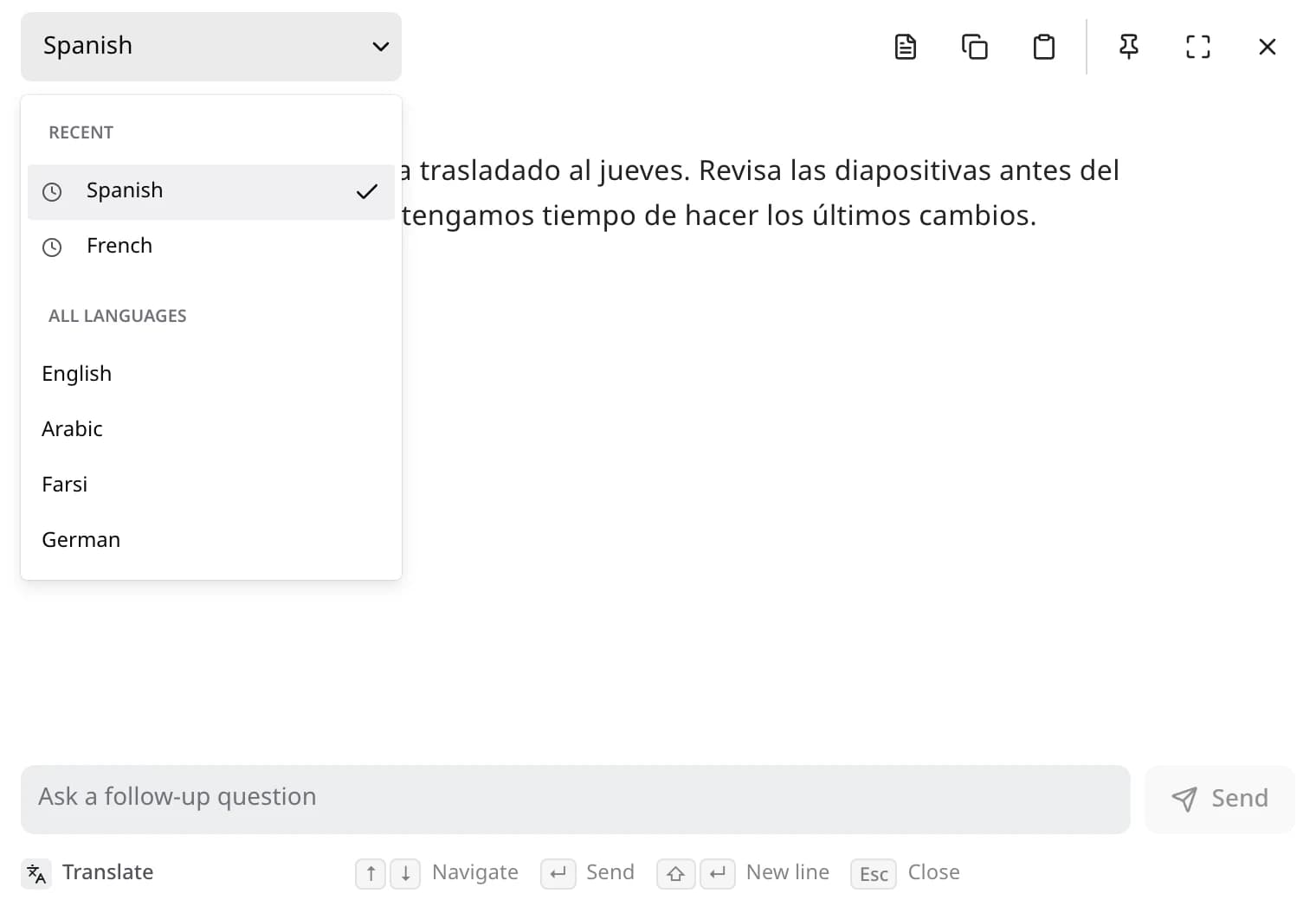
- Language
- Pick one of 15. Recent ones sit at the top, and Edyt remembers the last one.
- Adjust it
- Ask for changes below the translation, like more formal or shorter.
Translate settings
Open Toolbar in Edyt and click the gear next to Translate.
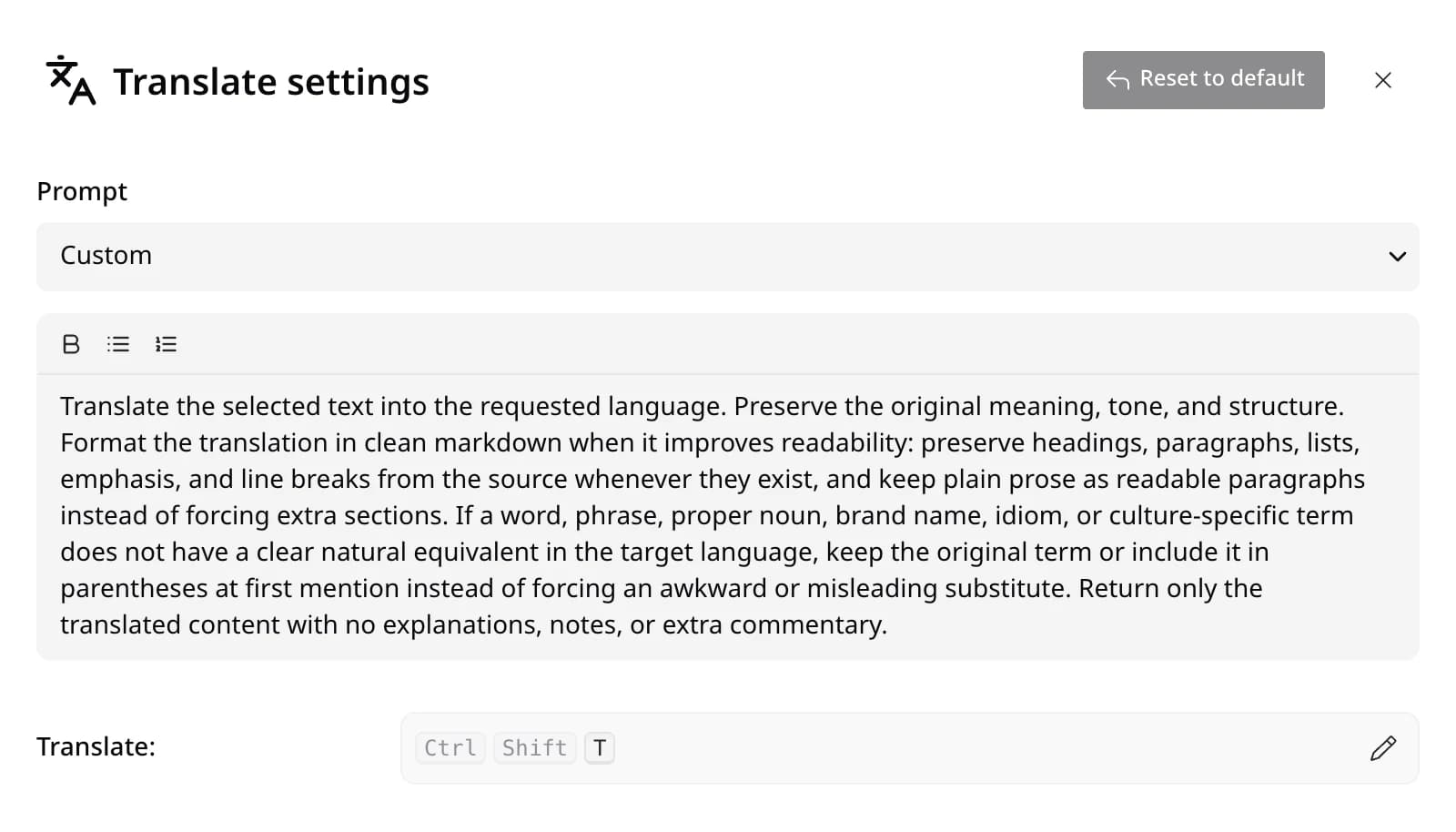
- Prompt
- Custom runs the built-in instruction. Pick one of your prompts or a Library prompt to run that instead.
- Instruction
- Edit the text to change how it translates, like more formal or more casual. Bold and lists work too.
- Shortcut
- Ctrl+Shift+T by default. Click the pencil and press the keys you want.
- Reset to default
- Brings back the built-in instruction and shortcut in one click.
Toolbar page
Open Edyt and pick Toolbar in the sidebar.
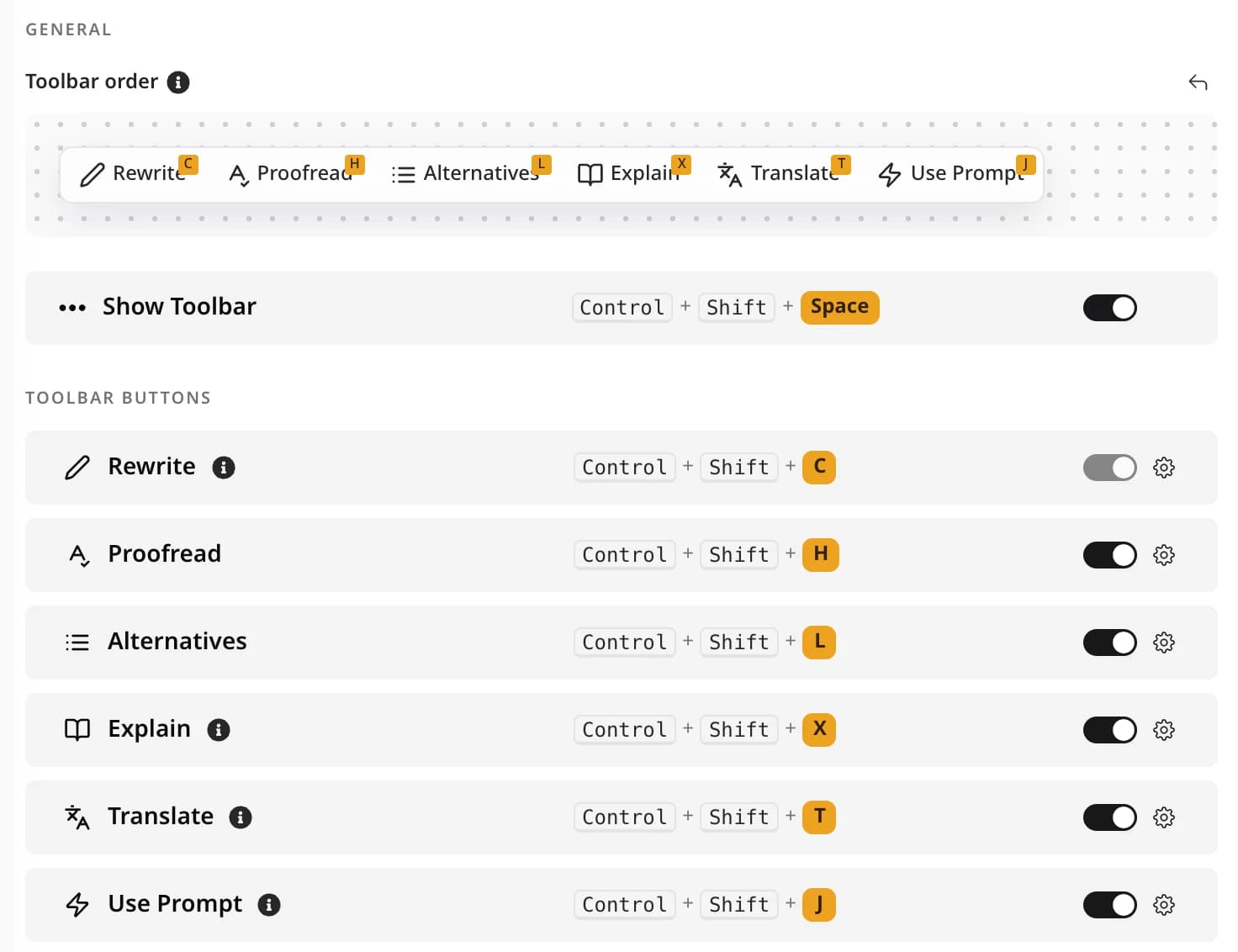
- Show or hide
- Switch Translate off to take it off the toolbar. Its shortcut keeps working.
- Order
- Drag the buttons under Toolbar order to rearrange them. The arrow puts them back.
Translate questions
English, Arabic, Spanish, Farsi, French, German, Italian, Portuguese, Turkish, Russian, Hindi, Urdu, Chinese (Simplified), Japanese, Korean.
Yes. Headings, paragraphs, lists, and line breaks stay where they were. Names and terms without a natural equivalent are kept as they are.
More actions.
Rewrite
Fix the mistakes and keep your words
Ctrl+Shift+C
Proofread
See each problem, and why, before anything changes
Ctrl+Shift+H
Alternatives
Pick from a few different versions
Ctrl+Shift+L
Explain
Understand what something means
Ctrl+Shift+X
Custom Prompts
Make the same kind of edit again and again
Ctrl+Shift+J
Screen Reading
Use text you can't select, like a PDF or a screenshot