How It Works
Ctrl+Shift+HProofread
Catch every typo before you send.
Flags grammar, spelling, and style issues, without rewriting your sentence.
How to use it.
01
Select your text
A message, a paragraph, or a whole document.
02
Press the shortcut
Ctrl+Shift+H, or open the toolbar and press H.
03
Review each flag
Accept or ignore each one, or use Fix all. Nothing changes until you do.
Make it yours.
Proofread panel
Opens when you run Proofread.
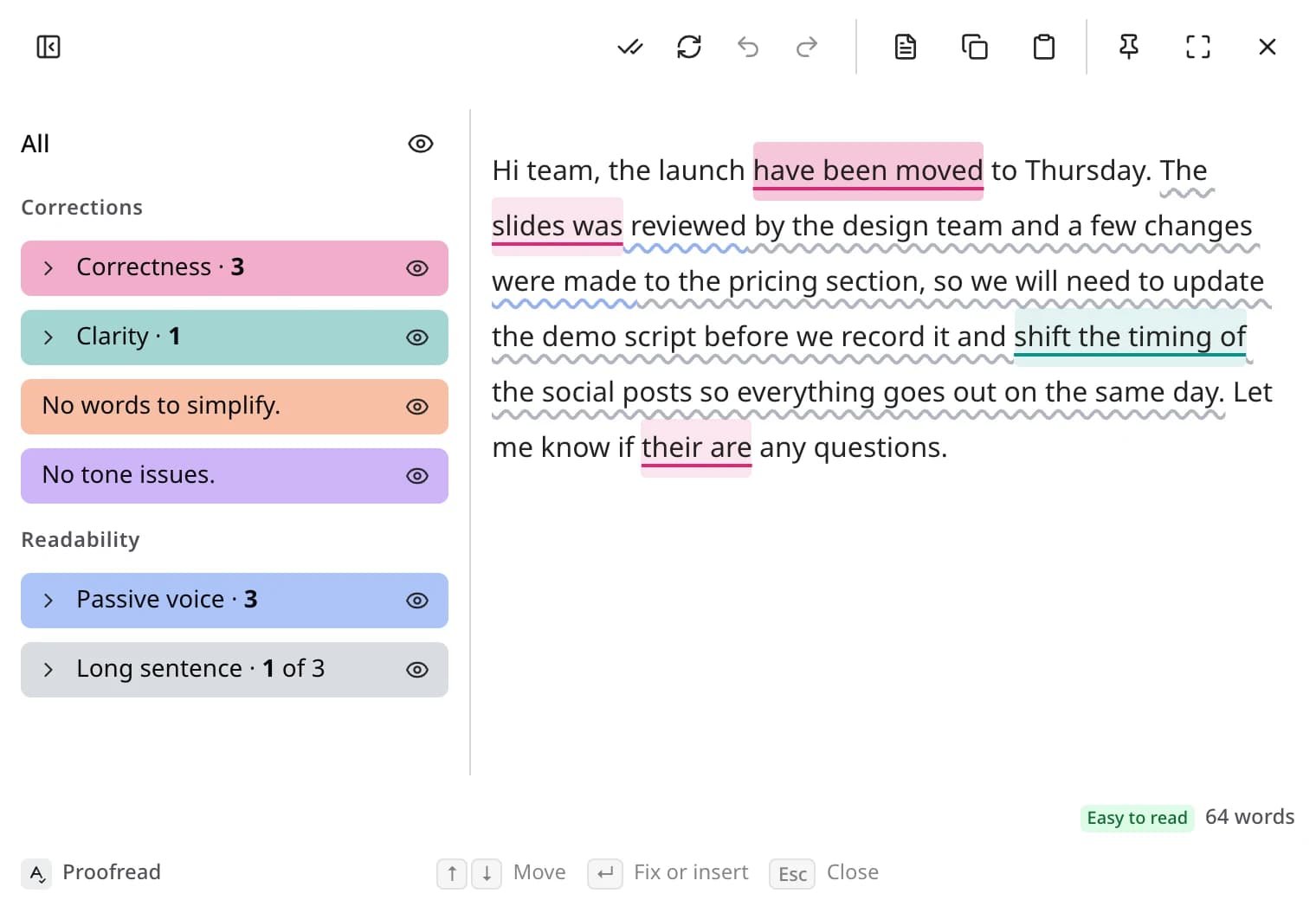
- Corrections
- Grouped as Correctness, Clarity, Word choice, and Tone, with a count for each. Open a group to jump to each one.
- Readability
- Passive voice and long sentences are marked too, so you can see what slows a reader down.
- Show or hide
- Click the eye on any group to hide its underlines, or use the one next to All. Fix all still fixes everything.
- Sidebar
- Hide it with the button at the top left, or drag its edge to resize it. Edyt remembers both.
- Top bar
- Fix all, check again, undo, and redo.
Toolbar page
Open Edyt and pick Toolbar in the sidebar.
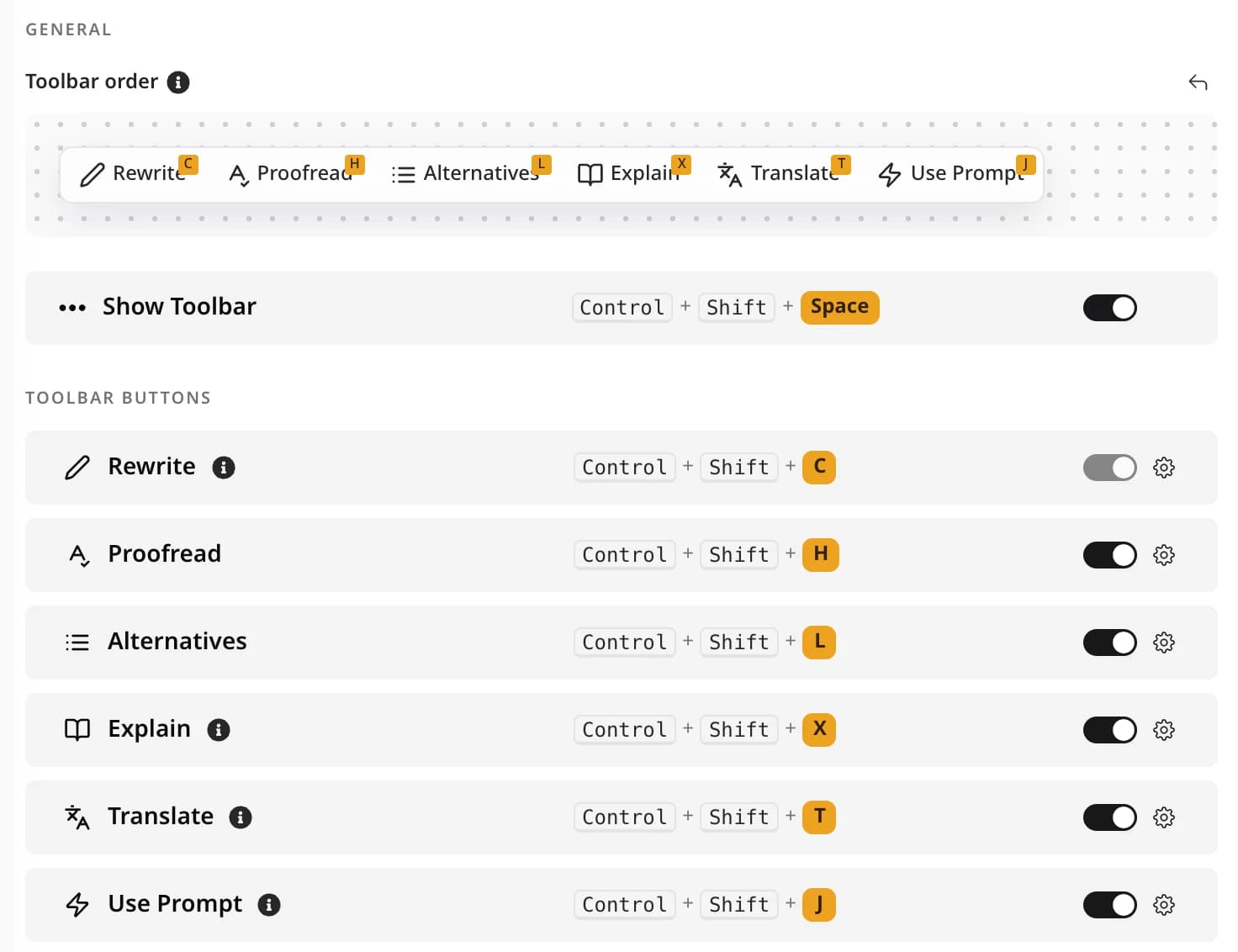
- Shortcut
- Ctrl+Shift+H by default. Click the gear next to Proofread to record a new one.
- Show or hide
- Switch Proofread off to take it off the toolbar. Its shortcut keeps working.
- Order
- Drag the buttons under Toolbar order to rearrange them. The arrow puts them back.
Proofread questions
No. It marks each issue first, color-coded by type, with the rule behind it. Your text only changes when you accept a fix or use Fix all.
Rewrite fixes everything in one go. Proofread shows you each problem and why, so you decide what changes.
More actions.
Rewrite
Fix the mistakes and keep your words
Ctrl+Shift+C
Alternatives
Pick from a few different versions
Ctrl+Shift+L
Explain
Understand what something means
Ctrl+Shift+X
Translate
Read or reply in another language
Ctrl+Shift+T
Custom Prompts
Make the same kind of edit again and again
Ctrl+Shift+J
Screen Reading
Use text you can't select, like a PDF or a screenshot